Before you start
- An Entra administrator in each tenant: Application Administrator or Cloud Application Administrator to register the app, and Global Administrator or Privileged Role Administrator to grant admin consent.
- Not always needed: SharePoint Migrator signs in as you with MFA and needs no app; M365 Audit & Governance can also run with your admin sign-in. Register an app for O365 Migration and Entra ID Migration, for unattended runs, or when your policy asks for app-only access.
Step 1: Register a new app
Entra admin center → Identity → Applications → App registrations → New registration. Name it (e.g. Migration), keep Single tenant only, leave Redirect URI empty and click Register. For tenant-to-tenant migrations do this in both tenants.

Step 2: Copy the Application (client) ID and Directory (tenant) ID
On Overview copy the Application (client) ID and the Directory (tenant) ID (or use the domain, e.g. contoso.onmicrosoft.com). The app asks for both.

Step 3: Add a permission → Microsoft Graph
API permissions → Add a permission → Microsoft Graph.
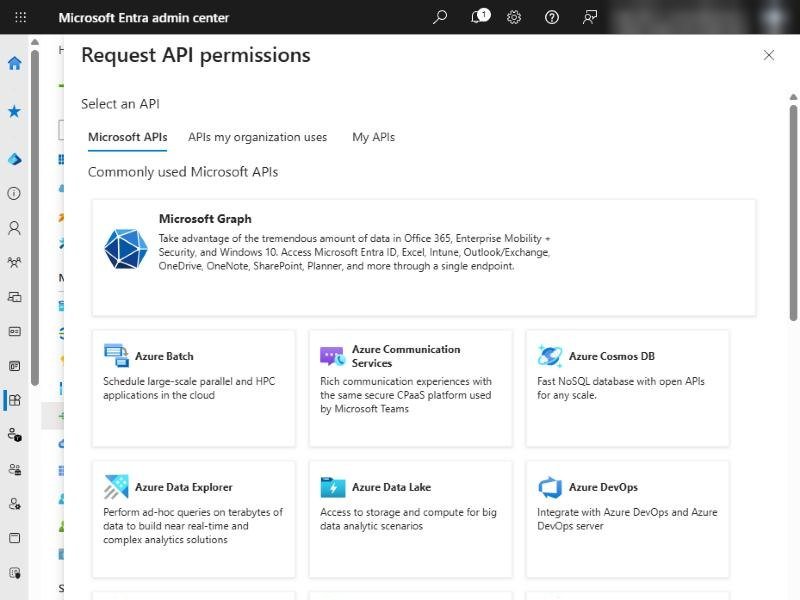
Step 4: Choose "Application permissions"
Choose Application permissions (not Delegated): the tools work as the app, for all users, also when nobody is signed in.

Step 5: Tick the permissions for your products
Type each name in the filter, open its group and tick it; repeat for the next one, then Add permissions. Add only what the products and features you use need:
| Product | Source tenant (reads) | Destination tenant (writes) |
|---|---|---|
| O365 Migration – Teams, groups, OneDrive, SharePoint files, Exchange | Group.Read.All, User.Read.All, Channel.ReadBasic.All, ChannelMember.Read.All, ChannelMessage.Read.All, Files.Read.All, Mail.Read, Contacts.Read, Calendars.Read | Group.ReadWrite.All, User.Read.All, Team.Create, Channel.Create, TeamMember.ReadWrite.All, ChannelMember.ReadWrite.All, Teamwork.Migrate.All, Files.ReadWrite.All, Mail.ReadWrite, Contacts.ReadWrite, Calendars.ReadWrite |
| O365 Migration – Google Drive / Gmail to Microsoft 365 | – (Google, see the Google setup guide) | Gmail: User.Read.All, Mail.ReadWrite, Contacts.ReadWrite, Calendars.ReadWrite. Google Drive writes through a SharePoint connection: your own sign-in, or SharePoint Sites.FullControl.All |
| Entra ID Migration – users, managers, guests, security groups, licences | User.Read.All, Group.Read.All | User.ReadWrite.All, Group.ReadWrite.All, User.Invite.All, Organization.Read.All, LicenseAssignment.ReadWrite.All |
| M365 Audit & Governance | Audits: Group.Read.All, User.Read.All, Reports.Read.All | Actions (add owners, e-mail owners): Group.ReadWrite.All, Mail.Send |
| SharePoint Migrator and SharePoint copies in the other apps (App ID connection) | SharePoint API: Sites.FullControl.All – next step | |
One app for everything in a tenant? A write permission also covers its read one (e.g. Mail.ReadWrite covers Mail.Read, Group.ReadWrite.All covers Group.Read.All and Channel.ReadBasic.All), so the full list is: Calendars.ReadWrite, Channel.Create, ChannelMember.ReadWrite.All, ChannelMessage.Read.All, Contacts.ReadWrite, Files.ReadWrite.All, Group.ReadWrite.All, LicenseAssignment.ReadWrite.All, Mail.ReadWrite, Mail.Send, Organization.Read.All, Reports.Read.All, Team.Create, TeamMember.ReadWrite.All, Teamwork.Migrate.All, User.Invite.All, User.ReadWrite.All plus SharePoint Sites.FullControl.All. Least privilege is better: a source-only app with the read permissions.
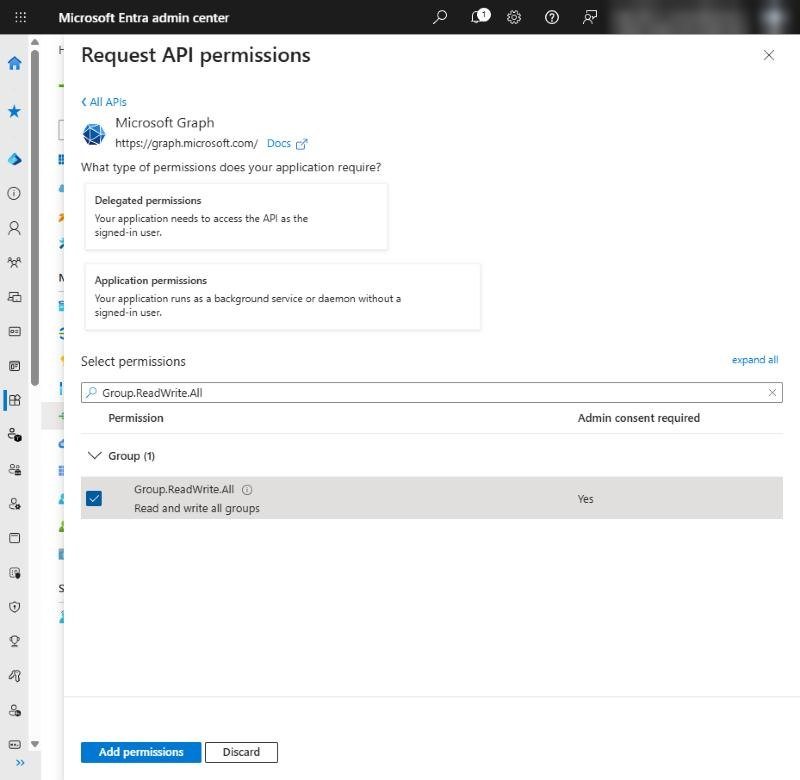
Step 6: Add SharePoint → Sites.FullControl.All
For SharePoint connections with an App ID (site structure, permissions, versions, metadata): Add a permission → SharePoint (further down, under Microsoft APIs) → Application permissions → Sites → Sites.FullControl.All → Add permissions. This is the SharePoint API, not the Graph permission with the same name.

Step 7: Grant admin consent
Check the list, then click Grant admin consent for <your tenant> and confirm. The Status column turns to Granted for every row. Allow 5–10 minutes before the first connection. Remove the default delegated User.Read if you like – it is not used.

Step 8: Add a credential: certificate (or secret)
Certificates & secrets. Which one:
| Used by | Credential |
|---|---|
| SharePoint connections (SharePoint Migrator, SharePoint copies in O365 Migration, SharePoint audits) | Certificate only – SharePoint Online refuses client secrets for app-only access |
| Tenants page – Graph features (Teams, OneDrive, Exchange, Entra, Governance) | Client secret or certificate |
For a secret: Client secrets → New client secret, choose an expiry, Add, and copy the Value at once (it is shown only once). Paste it straight into the app – never into e-mail or chat.

Step 9: Upload the certificate the app creates
In the app: Connections → Create new connection → App ID, enter the client ID and click Create certificate – it saves a .cer file and keeps the private key encrypted on the PC. Here: Certificates → Upload certificate, choose the .cer, Add. The Thumbprint shown must match the one in the app (see Connect with an App ID).

Step 10: Special cases: Teams conversations, Power Platform, Exchange scope
- Teams conversations:
ChannelMessage.Read.All(application) is a protected API – submit Microsoft's protected API access request for the source app before migrating conversations.Teamwork.Migrate.Allin the destination needs no request. - Power Platform audits (M365 Audit & Governance): register the app once as a management application – in PowerShell
pac admin application register --application-id <client ID>. - Limit mailbox access (optional): Exchange Online RBAC for Applications can scope
Mail.*,Contacts.*andCalendars.*to the mailboxes you migrate.
Step 11: Add and test the tenant in the app
Tenants → Add tenant: a name, the tenant ID or domain, the Application (client) ID and the secret or certificate. Add and test signs in and shows, per feature, which permissions are granted and which are missing – the Copy button copies the exact list to give your Entra admin. Secrets and keys are encrypted with Windows for your account.

Good to know
- Source and destination are separate tenants: register one app in each, with the source (read) permissions in the source and the destination (write) permissions in the destination.
- A missing permission only blocks the feature that needs it – the tenant check lists them per feature, so you can start with what you migrate first.
- After the project: delete the client secret or certificate, or the whole app registration, so the access ends.
- Error AADSTS7000215: wrong secret (copy the Value, not the Secret ID). AADSTS700027: the certificate is not on the app registration. 403 / Authorization_RequestDenied: admin consent missing or not active yet.
Need help?
Search the help center, open a support ticket, or let us run the migration for you.
Related guides
Connect the source and destination Microsoft 365 tenants
The App ID (Microsoft Graph application permissions) that Teams, OneDrive, Exchange and Gmail migrations use.
4 steps · 15 minutes per tenant (admin)Connect to SharePoint Online with an App ID (certificate)
For tenants that want app-only access: an Entra app with a certificate the app creates for you.
5 steps · 15 minutes (admin)Set up Google Workspace for Google Drive and Gmail migration
Google Cloud project, the four APIs, a service account with domain-wide delegation and the read-only scopes – plus the optional "Sign in with Google" client.
11 steps · 20 minutes (Google admin)